Make a movement
Draw on the first frame, duplicate it and change a detail. Press play to see the difference.
FRAME BY FRAME
Draw a frame, duplicate it and change the next pose. Play the sequence like a flipbook.
Start AnimateRead the guide ↓Studio tools currently appear in Swedish.
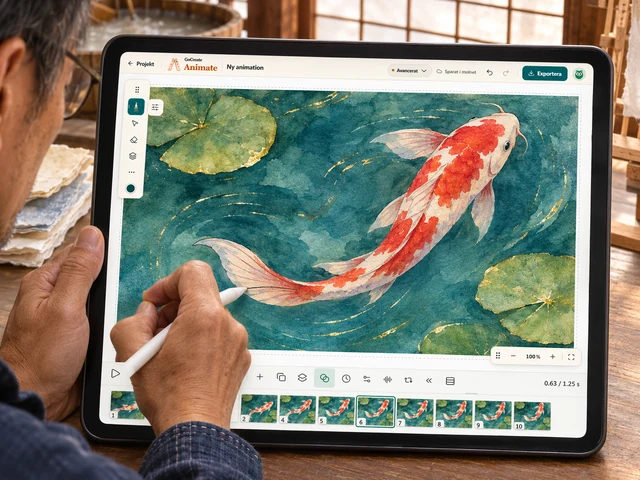
Draw on the first frame, duplicate it and change a detail. Press play to see the difference.
Onion skin shows the previous drawing as a guide. Use the timeline to set the pace.
Advanced mode offers audio, exposure timing and export to movie or GIF.
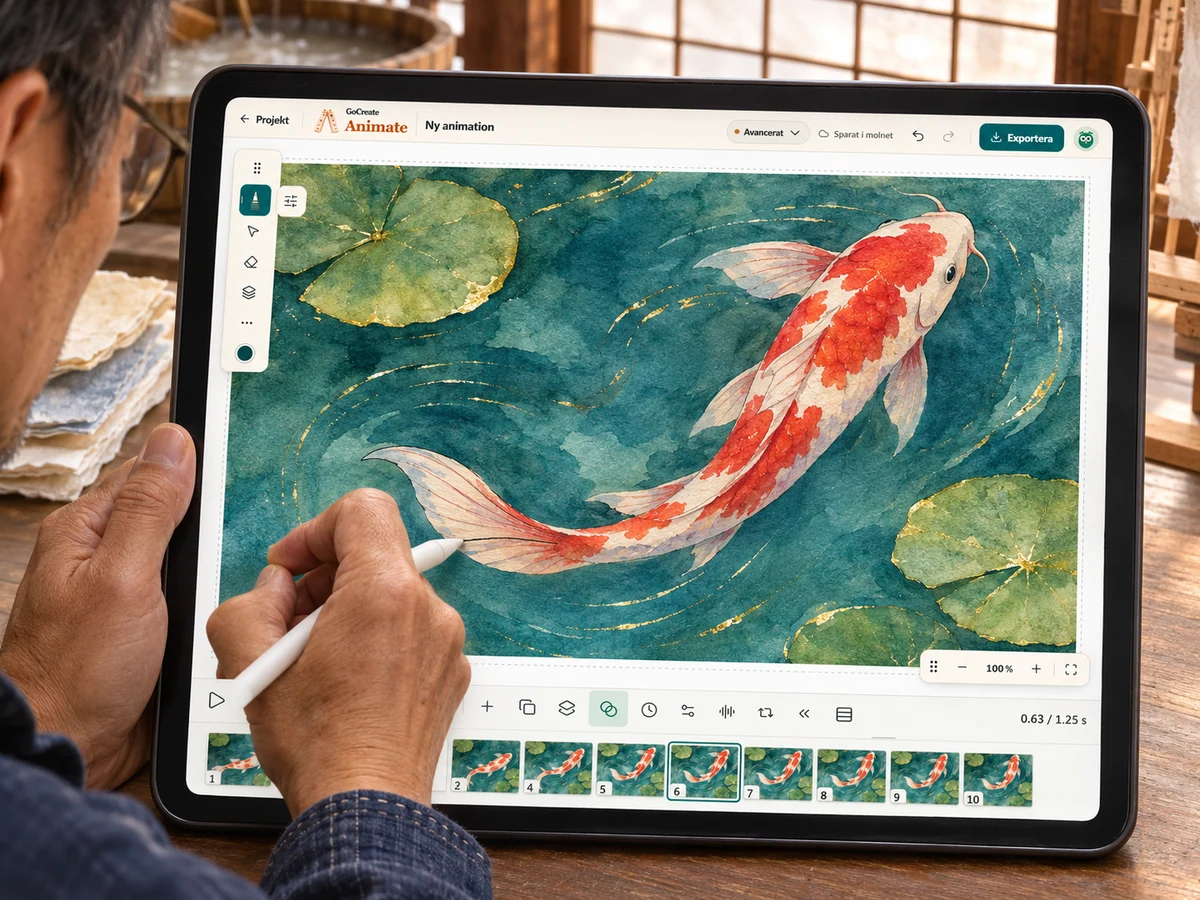
Start with two frames. A small change to the tail can make a whole fish look alive.
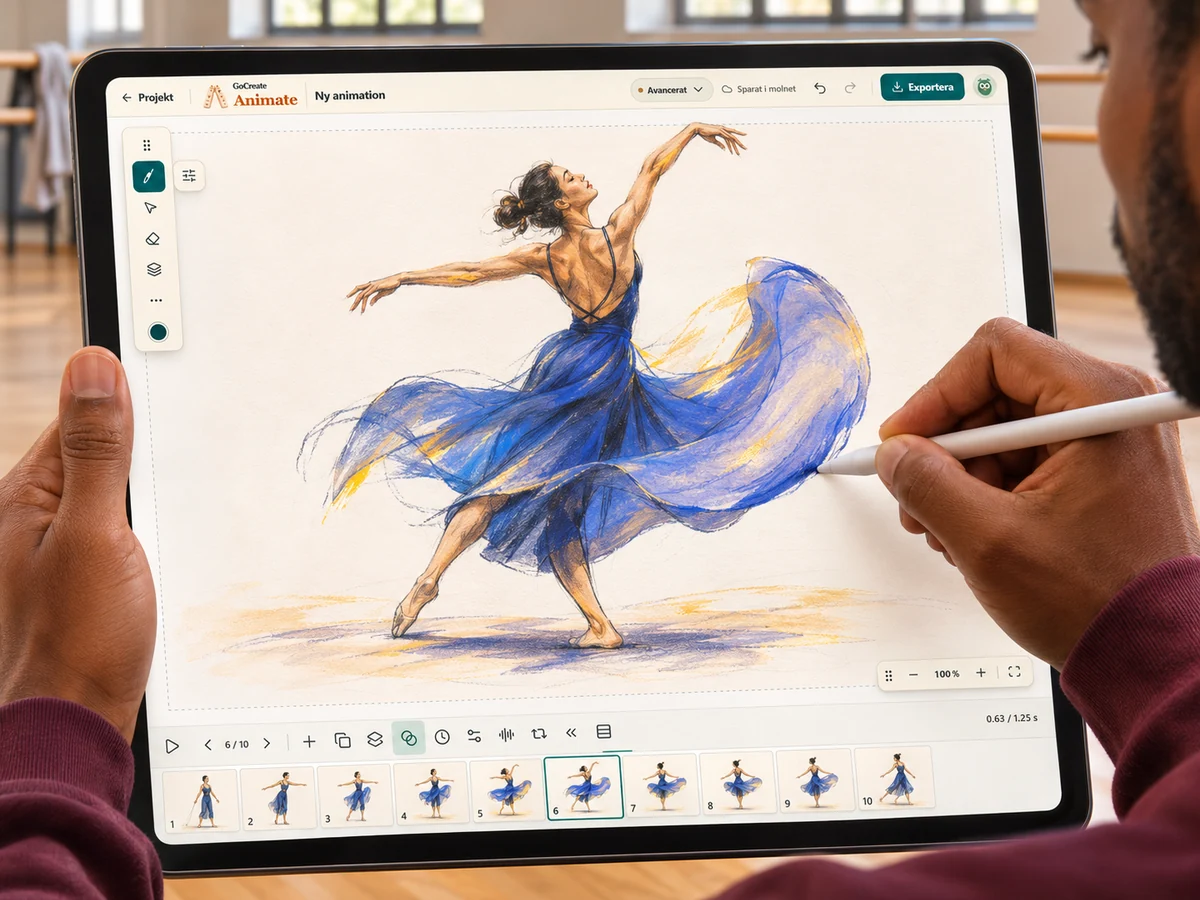
Onion skin shows a faint neighbouring frame. It helps you draw and is left out of the export.
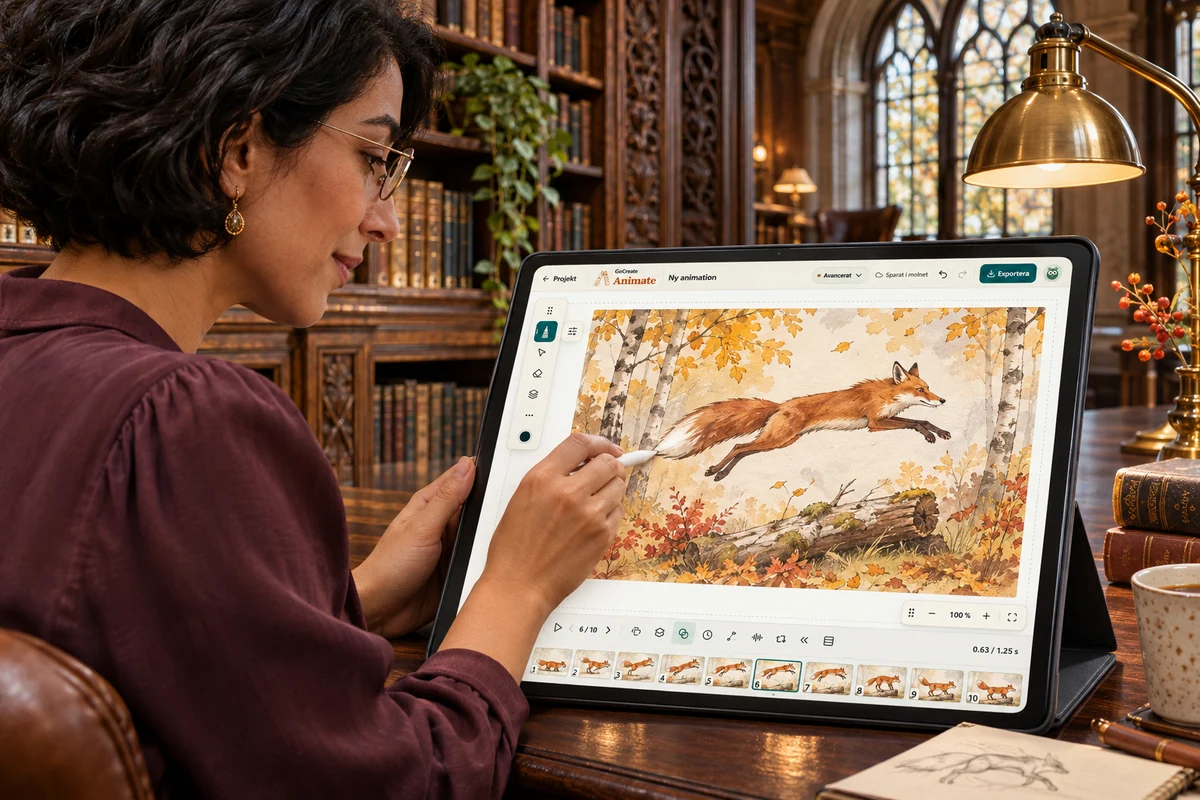
Separate the moving subject from the scenery using layers so you can change one without redrawing the other.
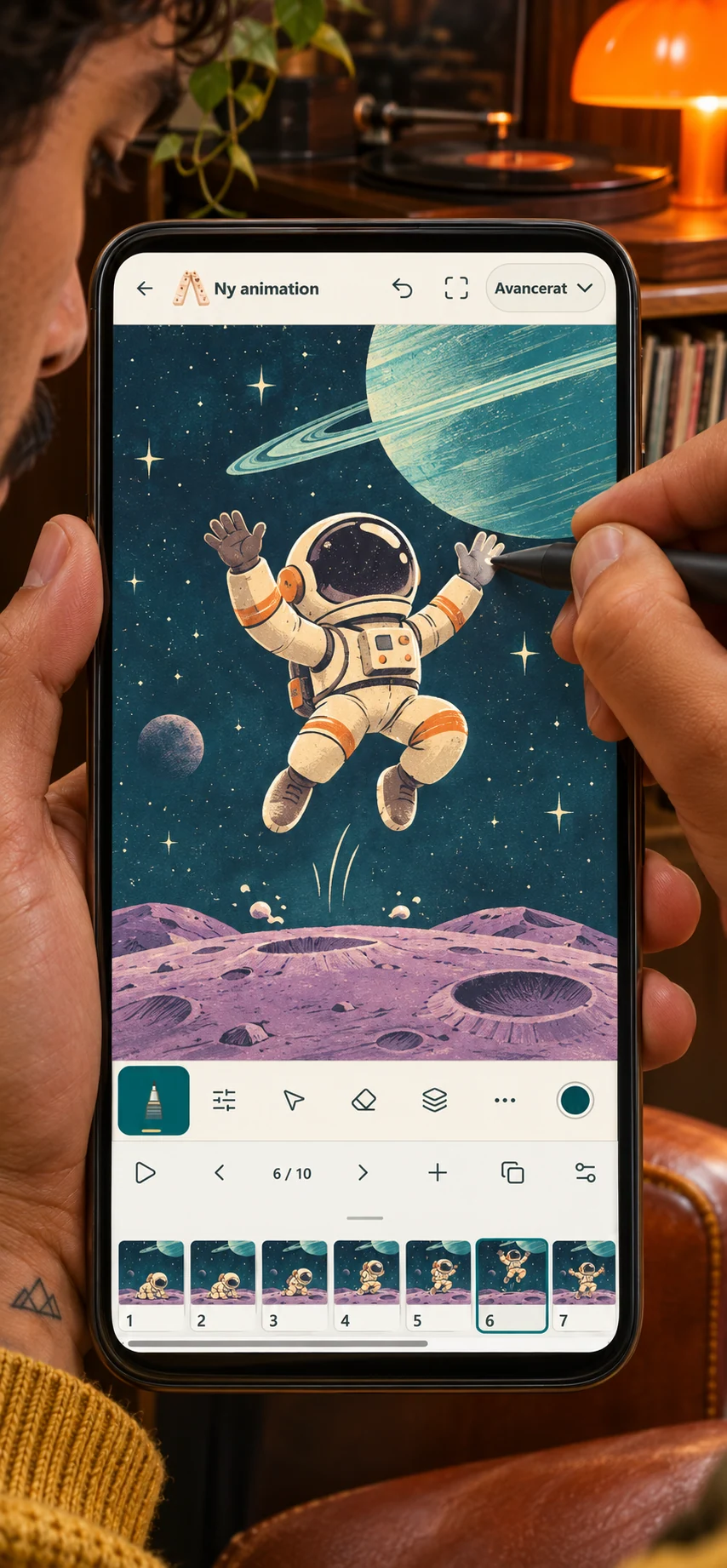
Watch the whole sequence before choosing a format. An editable project and a finished film serve different purposes.
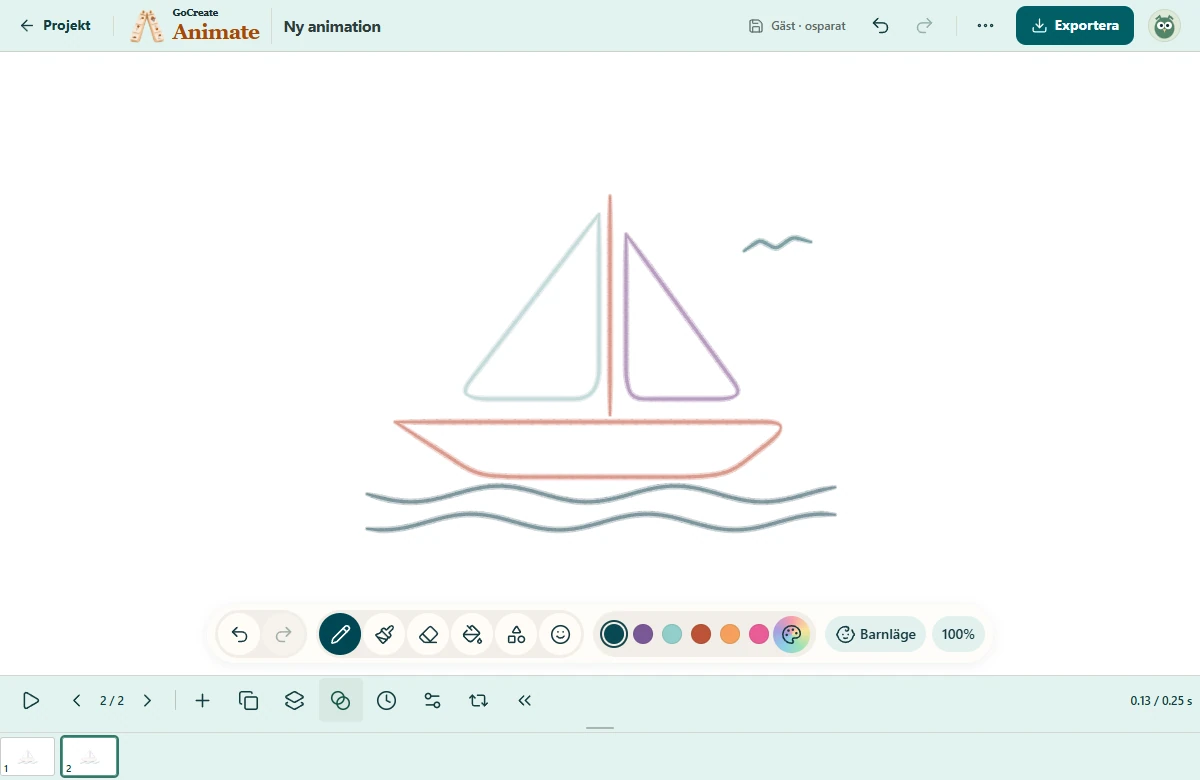
Draw with the same tools as in Sketch. The strip at the bottom shows your frames; select one to draw on it.
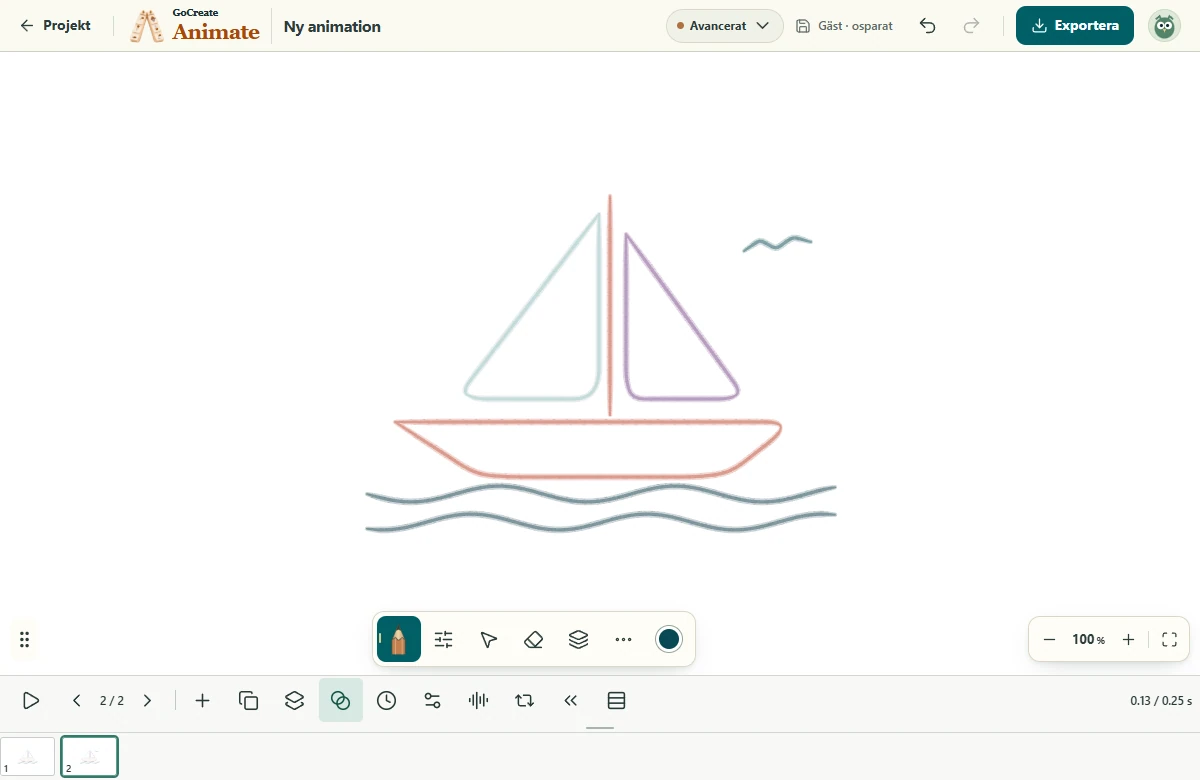
Use the timeline to duplicate frames, adjust exposure and toggle onion skin. Play your sequence to see how long each movement lasts.
Animate
One curve, different materials. Compare marks rendered by the studio’s own brushes.
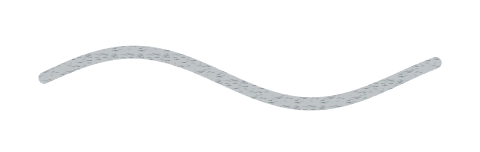 Graphite
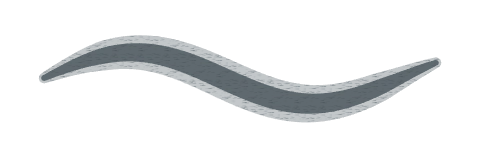 9B
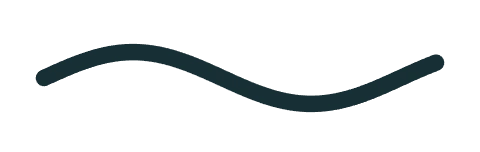 Ink
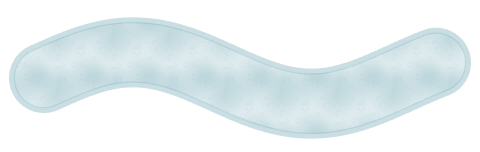 Watercolour
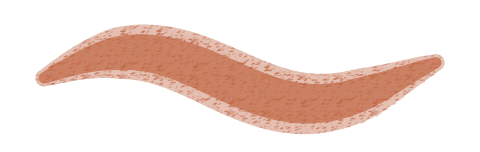 Oil pastel
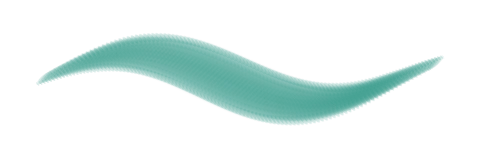 Flat gouache
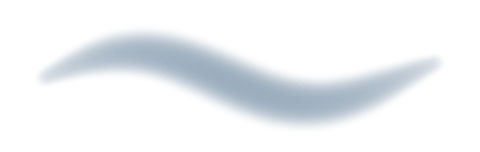 Soft airbrush
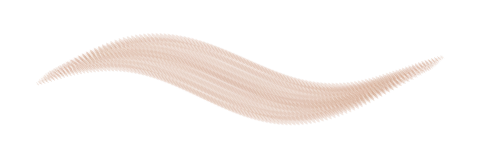 Dry bristle
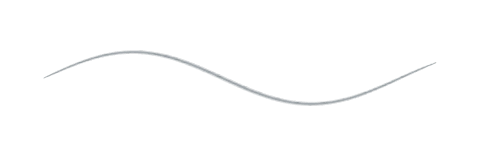 Hard graphiteGraphite
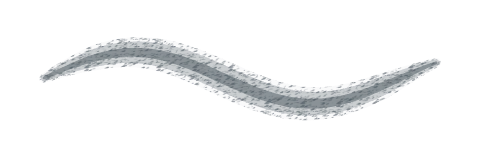 Soft graphite
 Mechanical pencil
 Colored pencil
 Graphite block
 Graphite 9H
 Graphite 8H
 Graphite 7H
 Graphite 6H
 Graphite 5H
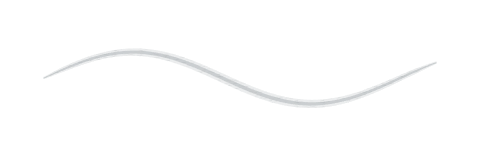 Graphite 4H
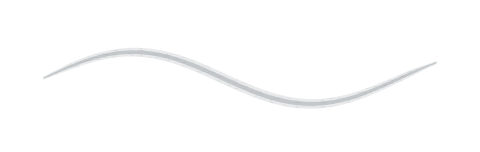 Graphite 3H
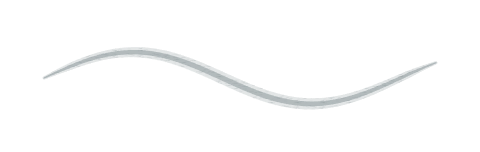 Graphite 2H
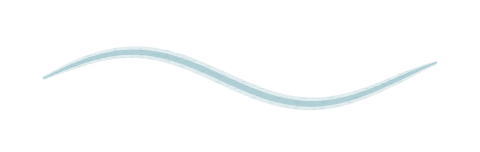 Graphite H
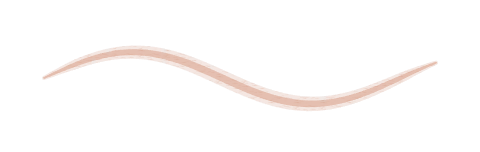 Graphite F
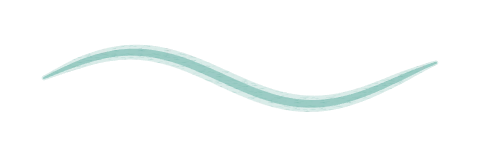 Graphite HB
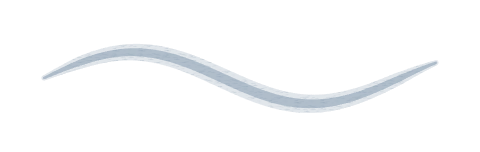 Graphite B
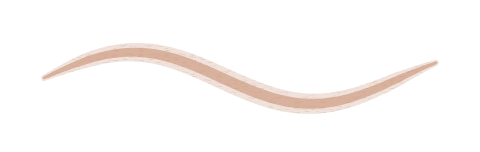 Graphite 2B
 Graphite 3B
 Graphite 4B
 Graphite 5B
 Graphite 6B
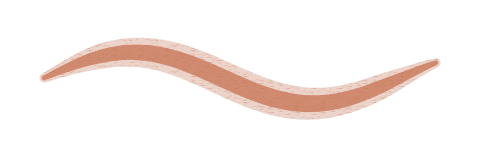 Graphite 7B
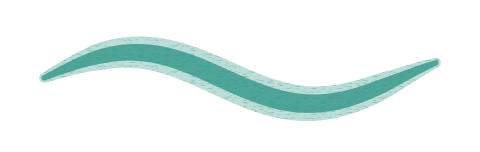 Graphite 8BGraphite 9B
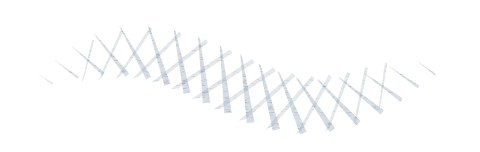 Crosshatched graphite
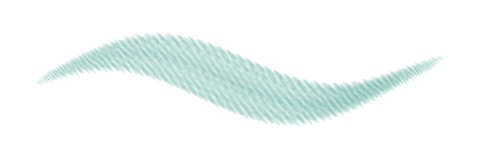 Charcoal stick
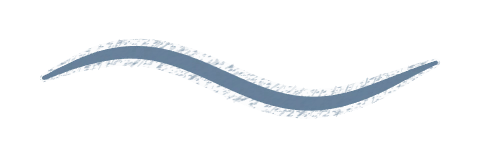 Charcoal pencil
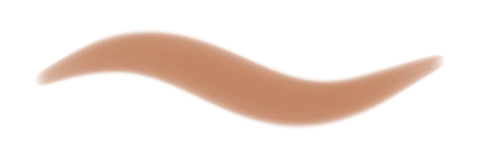 Soft pastel
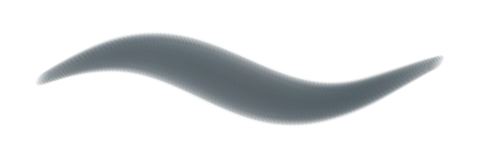 Oil pastel
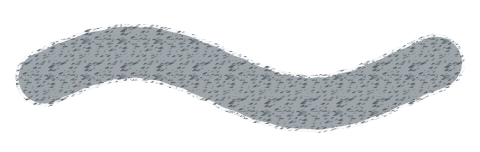 Crayon
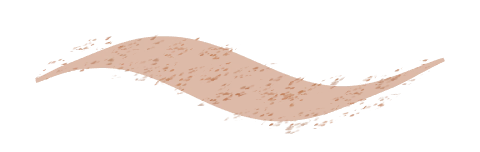 Compressed charcoalLayered oil pastelIndia ink
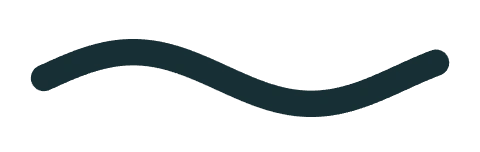 Monoline
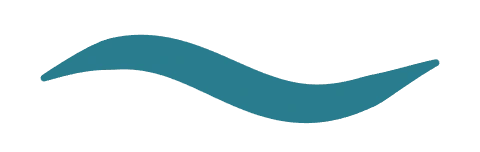 Brush pen
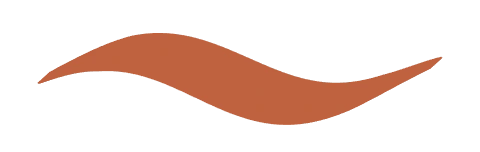 Calligraphy
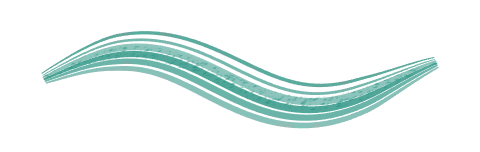 Dry ink
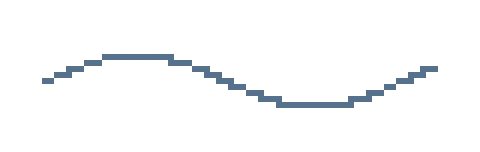 Pixel pen
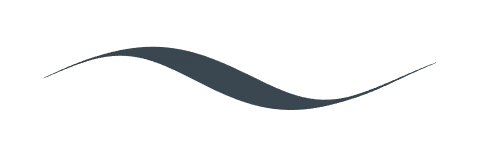 Pointed steel pen
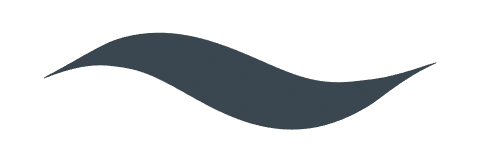 Comic inker
 Felt tip
 Broad marker
 Alcohol marker
 Highlighter
 Gouache roundGouache flatDry bristle
 Round mixer
 Oil mixer
 Palette knife
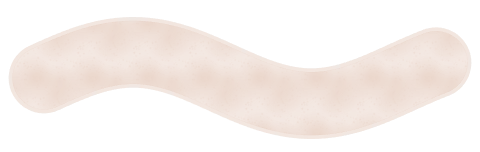 Watercolour wash
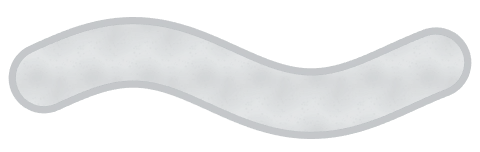 Edged wash
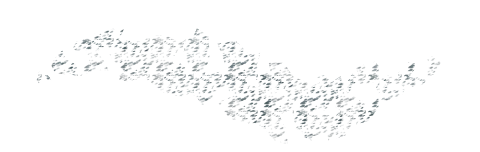 Dry gouache scumble
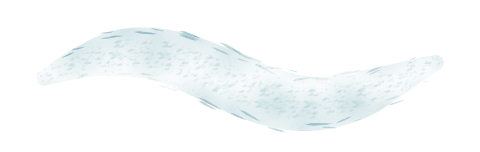 Dry watercolourWatercolour with pigment edgesSoft airbrush
 Hard airbrush
 Spray
 Fan spray
 Stippling
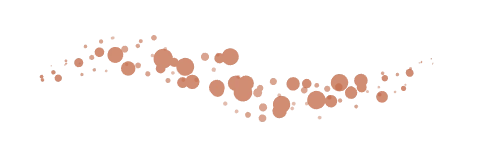 Spatter
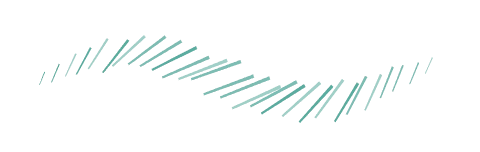 Hatching
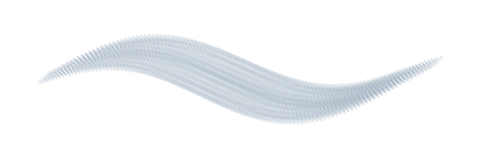 Fibre brush
 Tile stamp
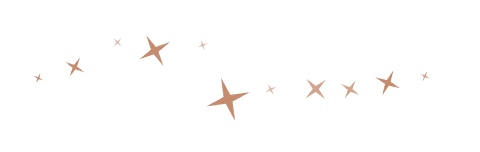 Star scatter
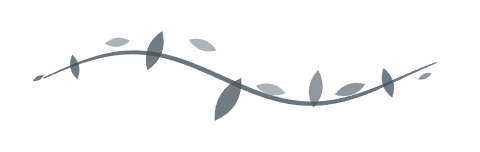 Foliage
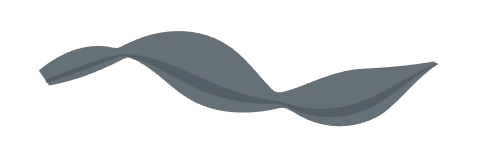 Ribbon
 Soft glow
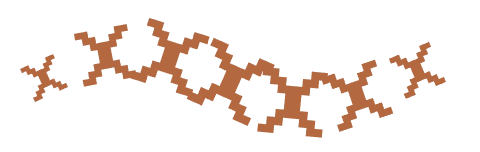 Woven border
 Grass tuft
Use the same graphite, ink and brushes as Sketch. Turn on onion skins to see the previous pose while drawing the next one.
Duplicate a frame to draw a new pose or hold a picture with a longer exposure. Loop the sequence to find the moment that needs changing.
Put the character on a separate track and keep the background in place. Select a range to edit several frames together.
Place audio on the timeline and listen during playback. Use GIF for a silent loop, or export a movie when sound matters.
No. Open Sketch or Animate to try it. Guest work exists only in the open tab. Create an account to save it in your studio.
Yes. GoCreate reads pen pressure and tilt when the browser and device report them. Pen mode lets you draw with the pen and navigate with your fingers. Support depends on the pen, driver and browser.
Overview
Two studios for one idea. Explore the tools and find your starting point.
DRAW & ILLUSTRATE
From first sketch to finished illustration. Explore graphite from 9H to 9B, watercolour, oil pastel and layers.
CREATE TOGETHER
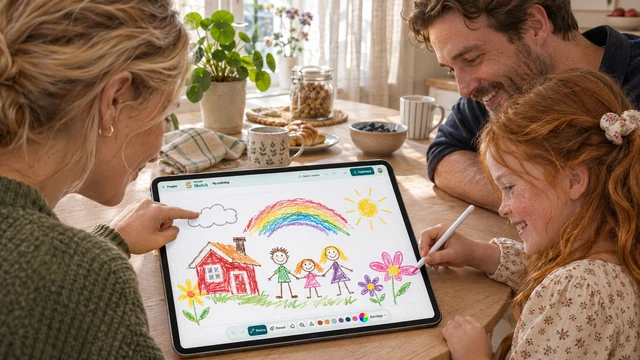
An adult creates the family studio and gives each child their own profile. Children do not need email addresses.